
 Forum
Forum


Sau khi tải và cài đặt Windows Server 2019, bạn sẽ đi đến quá trình thiết lập ban đầu. Cùng tìm hiểu chi tiết qua bài viết sau đây nhé!
Thêm người dùng cục bộ
1. Chạy PowerShell với quyền admin và cấu có vẻ như sau:
Windows PowerShell Copyright (C) Microsoft Corporation. All rights reserved. # for example, add [Serverworld] user # [P@ssw0rd01] ⇒ the password you set (replace it you like) # [PasswordNeverExpires] ⇒ set password never expire(if set default expiration, do not specify this option) PS C:UsersAdministrator> New-LocalUser -Name "Serverworld" ` -FullName "Server World" ` -Description "Administrator of this Computer" ` -Password (ConvertTo-SecureString -AsPlainText "P@ssw0rd01" -Force) ` -PasswordNeverExpires ` -AccountNeverExpires Name Enabled Description ---- ------- ----------- Serverworld True Administrator of this Computer # add [Serverworld] user to [Administrators] group PS C:UsersAdministrator> Add-LocalGroupMember -Group "Administrators" -Member "Serverworld" # verify PS C:UsersAdministrator> Get-LocalUser -Name Serverworld Name Enabled Description ---- ------- ----------- Serverworld True Administrator of this Computer PS C:UsersAdministrator> Get-LocalGroupMember -Group "Administrators" ObjectClass Name PrincipalSource ----------- ---- --------------- User RX-7Administrator Local User RX-7Serverworld Local # if remove an user, do like follows PS C:UsersAdministrator> Remove-LocalUser -Name "Serverworld"
2. Chạy Server Manager và mở Tools > Computer Management .
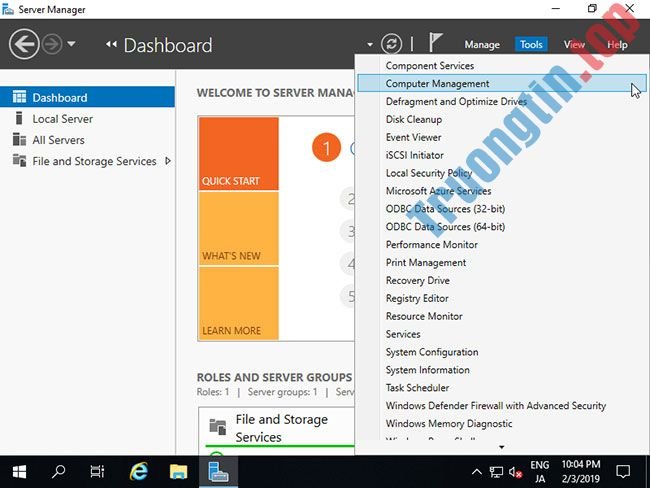
3. Nhấp chuột phải vào Users bên dưới Local Users and Groups ở bên trái và chọn New User.

4. Nhập Username và Password cho người dùng mới, rồi nhấp vào nút Create . Các mục khác là tùy chọn để thiết lập.

5. Sau khi tạo, người dùng mới được hiện trên danh sách như sau.

6. Nếu bạn muốn đặt quyền admin cho người dùng mới, hãy nhấp chuột phải vào người sử dụng và mở Properties .

7. Di chuyển đến tab Member of và nhấp vào nút Add.
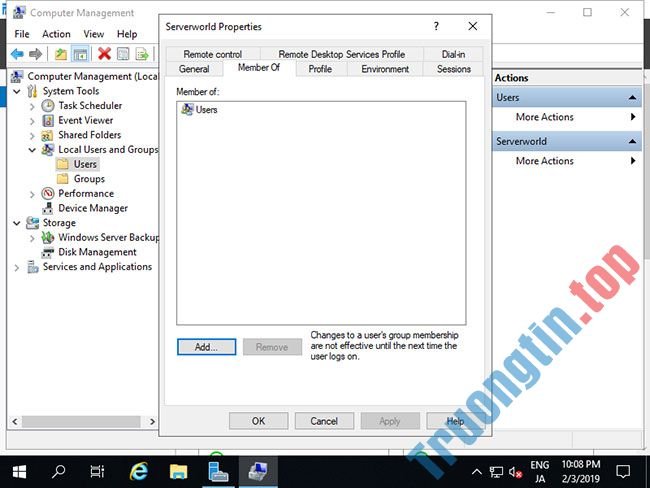
8. Chỉ định nhóm Administrators như sau.

9. Đảm nói rằng nhóm Administrators được thêm vào danh sách và nhấp vào nút OK để hoàn chỉnh cài đặt.

Thay đổi username admin
Nếu muốn thay thay tên tài khoản admin vì một số nguyên do như bảo mật, bạn cũng có thể thay đổi như sau.
1. Chạy PowerShell với quyền admin và cấu hình như sau:
Windows PowerShell Copyright (C) Microsoft Corporation. All rights reserved. # for example, change the name [Administrator] to [ServerworldAdmin] PS C:UsersAdministrator> Rename-LocalUser -Name "Administrator" -NewName "ServerworldAdmin" PS C:UsersAdministrator> Get-LocalUser # changed Name Enabled Description ---- ------- ----------- DefaultAccount False A user account managed by the system. Guest False Built-in account for guest access to the computer/domain Serverworld True Administrator of this Computer ServerworldAdmin True Built-in account for administering the computer/domain sshd True WDAGUtilityAccount False A user account managed and used by the system for Windows Defender Application Guard scen...
2. Chạy Server Manager và mở Tools > Computer Management .
3. Mở Local Users and Groups > Users ở bên trái và bấm chuột phải vào Administrator , rồi chọn Rename ở bên phải. Sau đó, thay đổi bất kỳ tên nào bạn thích.

4. Tên Admin vừa được thay đổi.

Thay thay tên máy tính
Tên máy tính được gán tự động theo mặc định, vì thế hãy thay đổi nó.
1. Chạy PowerShell với quyền admin và cấu có vẻ như sau:
Windows PowerShell Copyright (C) Microsoft Corporation. All rights reserved. # for example, change Computer Name to [RX-7] PS C:UsersAdministrator> Rename-Computer -NewName RX-7 -Force -PassThru HasSucceeded OldComputerName NewComputerName ------------ --------------- --------------- True RX-7 RX-9 WARNING: The changes will take effect after you restart the computer RX-7. # for example, change Primary DNS Suffix to [srv.world] PS C:UsersAdministrator> Set-ItemProperty "HKLM:SYSTEMCurrentControlSetServicesTcpipParameters" –Name "NV Domain" –Value "srv.world" -PassThru NV Domain : srv.world PSPath : Microsoft.PowerShell.CoreRegistry::HKEY_LOCAL_MACHINESYSTEMCurrentControlSetServicesTcpipParameters PSParentPath : Microsoft.PowerShell.CoreRegistry::HKEY_LOCAL_MACHINESYSTEMCurrentControlSetServicesTcpip PSChildName : Parameters PSDrive : HKLM PSProvider : Microsoft.PowerShell.CoreRegistry # restart Computer to apply changes PS C:UsersAdministrator> Restart-Computer -Force # verify PS C:UsersAdministrator> (ipconfig /all)[0..9] Windows IP Configuration Host Name. . . . . . . . . . . . : RX-7 Primary Dns Suffix. . . . . . . : srv.world Node Type. . . . . . . . . . . . : Hybrid IP Routing Enabled.. . . . . . . : No WINS Proxy Enabled.. . . . . . . : No DNS Suffix Search List.. . . . . : srv.world
2. Chạy Server Manager và chọn Local Server ở bên trái, rồi kích vào phần Computer Name ở bên phải.

3. Di chuyển đến tab Computer Name và kích vào nút Change .
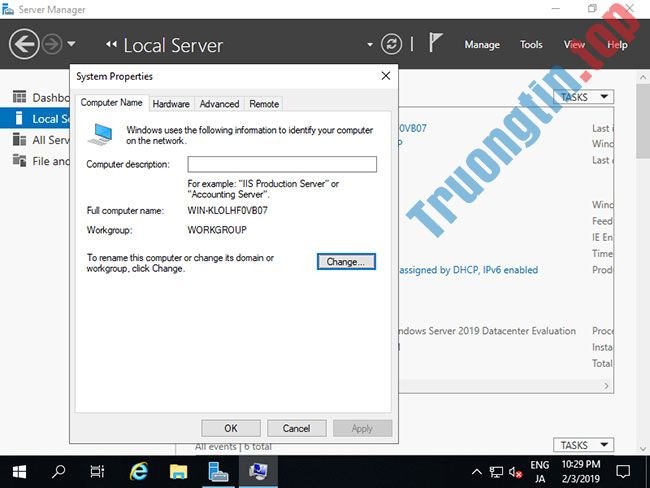
4. Nhập bất kỳ tên máy tính nào bạn thích vào trường Computer Name và nhấp vào nút More…

5. Nhập tên domain mà máy tính này đang thuộc về.

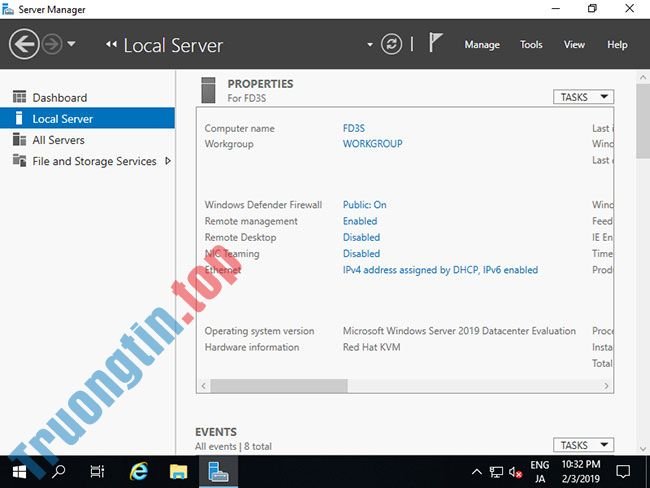
6. Việc khởi động lại máy tính là bắt buộc để áp dụng các thay đổi.

7. Tên máy tính được thay đổi bình thường.
- Tải Windows Server 2019 và khám phá những tính năng mới
- Cách cài đặt VPN trên Windows Server 2019
- 10 cải tiến bảo mật hàng đầu trong Windows Server 2019
- Triển khai những vấn đề này trước tiên khi chuyển dữ liệu lên Windows Server 2019
Windows Server 2019,thiết lập Windows Server 2019,thiết lập ban đầu Windows Server 2019,thêm người dùng cục bộ,thay đổi username admin,thiết lập địa chỉ ip tĩnh,cấu hình cập nhật windows
Nội dung Cách thiết lập ban đầu Windows Server 2019 được tổng hợp sưu tầm biên tập bởi: Tin Học Trường Tín. Mọi ý kiến vui lòng gửi Liên Hệ cho truongtin.top để điều chỉnh. truongtin.top tks.
Bài Viết Liên Quan




![[Lý thuyết] Proxy Server là gì?](/wp-content/uploads/2022/06/25/23/ly-thuyet-proxy-server-la-gi-3.png)
Bài Viết Khác
- Địa Chỉ Cài Win Quận 3 – Cài Đặt PC Laptop Tại Nhà Q3
- Sửa Wifi Tại Nhà Quận 4
- Sửa Laptop Quận 3
- Dịch Vụ Cài Lại Windows 7,8,10 Tận Nhà Quận 4
- Dịch Vụ Cài Lại Windows 7,8,10 Tận Nhà Quận 3
- Tuyển Thợ Sửa Máy Tính – Thợ Sửa Máy In Tại Quận 4 Lương Trên 10tr
- Tuyển Thợ Sửa Máy Tính – Thợ Sửa Máy In Tại Quận 3
- Địa Chỉ Vệ Sinh Máy Tính Quận 3 – Dịch Vụ Giá Rẻ
- Tổng hợp hình nền ngọn núi, ảnh núi đẹp cho máy tính
- Cách báo an toàn tại vùng lũ miền Trung với bạn bè trên Facebook
- Dịch Vụ Cài Win Đường 57 Quận 6
- Đánh giá máy in Epson L805 có tốt không? Có nên mua không?
- Cách xóa hoặc thay đổi mật khẩu tài khoản cục bộ trong Windows 10