
 Forum
Forum


Cấu hình SSH Server trên Windows Server 2019
1. Chạy Powershell với quyền admin và cấu hình SSH server như sau:
PowerShell Copyright (C) Microsoft Corporation. All rights reserved. # get available name of OpenSSH PS C:UsersAdministrator> Get-WindowsCapability -Online | ? Name -like 'OpenSSH*' Name : OpenSSH.Client~~~~0.0.1.0 State : Installed Name : OpenSSH.Server~~~~0.0.1.0 State : NotPresent # Install OpenSSH Server PS C:UsersAdministrator> Add-WindowsCapability -Online -Name OpenSSH.Server~~~~0.0.1.0 Path : Online : True RestartNeeded : False # start sshd service PS C:UsersAdministrator> Start-Service -Name "sshd" # set [Automatic] for Startup PS C:UsersAdministrator> Set-Service -Name "sshd" -StartupType Automatic # verify PS C:UsersAdministrator> Get-Service -Name "sshd" | Select-Object * Name : sshd RequiredServices : {} CanPauseAndContinue : False CanShutdown : False CanStop : True DisplayName : OpenSSH SSH Server DependentServices : {} MachineName :. ServiceName : sshd ServicesDependedOn : {} ServiceHandle : SafeServiceHandle Status : Running ServiceType : Win32OwnProcess StartType : Automatic Site : Container : # if Windows Firewall is running, allow 22/TCP PS C:UsersAdministrator> New-NetFirewallRule -Name "SSH" ` -DisplayName "SSH" ` -Description "Allow SSH" ` -Profile Any ` -Direction Inbound ` -Action Allow ` -Protocol TCP ` -Program Any ` -LocalAddress Any ` -RemoteAddress Any ` -LocalPort 22 ` -RemotePort Any Name : SSH DisplayName : SSH Description : Allow SSH DisplayGroup : Group : Enabled : True Profile : Any Platform : {} Direction : Inbound Action : Allow EdgeTraversalPolicy : Block LooseSourceMapping : False LocalOnlyMapping : False Owner : PrimaryStatus : OK Status : The rule was parsed successfully from the store. (65536) EnforcementStatus : NotApplicable PolicyStoreSource : PersistentStore PolicyStoreSourceType : Local
2. Mở Start > Settings .

3. Kích vào Apps .

4. Nhấp vào Manage optional features .

5. Nhấp vào Add a feature .

6. Chọn OpenSSH Server và nhấp vào nút Install.

7. Sau khi hoàn chỉnh cài đặt, OpenSSH Server sẽ được thêm nữa các service. Khởi động nó và thay đổi Startup thành Automatic .
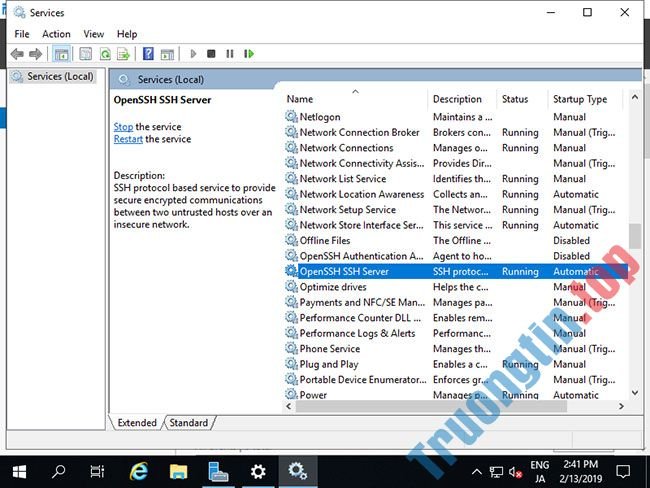
8. Nếu Windows Firewall đang chạy, hãy cho phép cổng service SSH (22/TCP).

- Cách cấu hình NTP Server và NTP Client trong Windows Server 2019
Cấu hình SSH Client trên Windows Server 2019
1. Trên Windows Server 2019, OpenSSH Client được cài đặt theo mặc định. Nhưng nếu nó chưa được cài đặt, hãy cài đặt từ Start > Settings > Apps > > Manage optional features > Add a feature > OpenSSH Client .

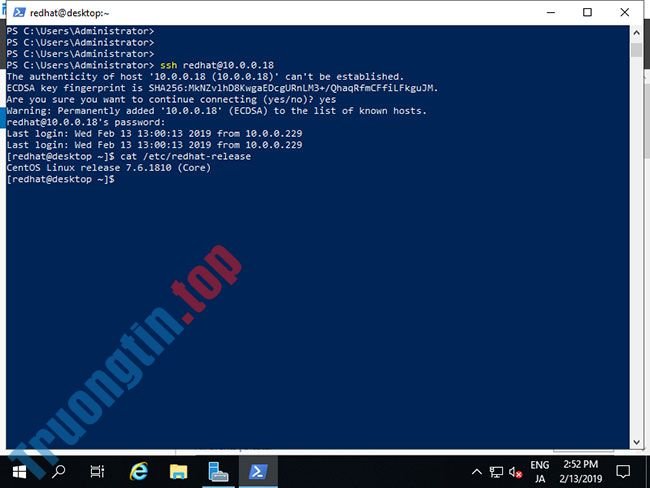
2. Có thể sử dụng lệnh client ssh như sau trên PowerShell hoặc Command Prompt:
PS > ssh (username)@(Hostname hoặc địa chỉ IP của SSH server)

3. Bạn cũng cũng có thể có thể đăng nhập vào Linux Host mà SSH server đang chạy.
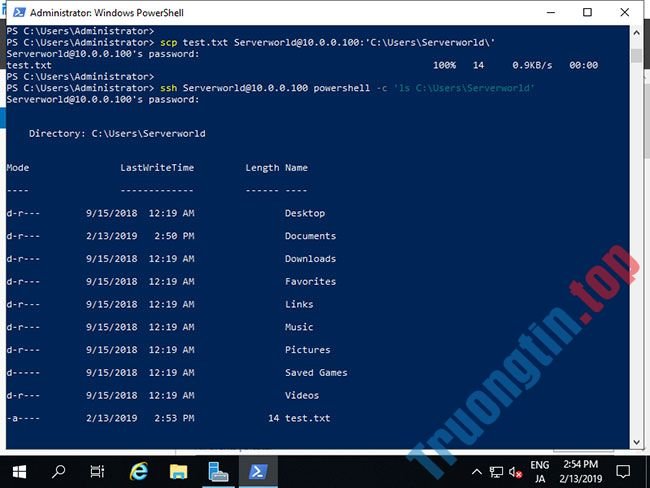
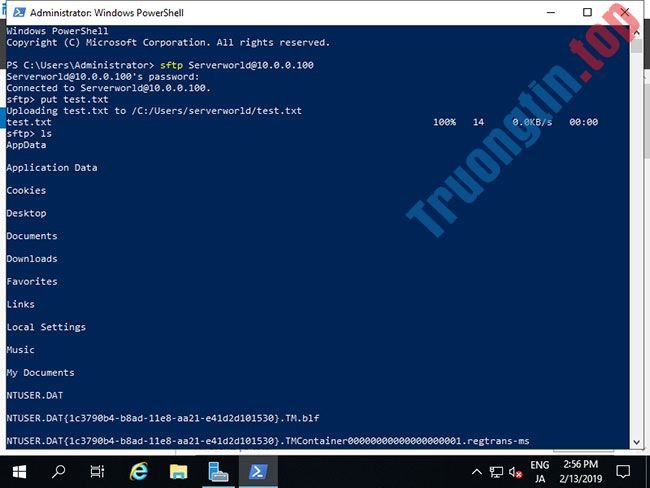
4. Bạn cũng có thể sử dụng lệnh scp và lệnh sftp để truyền file SSH.
- Cách thiết lập ban đầu Windows Server 2019
- Tải Windows Server 2019 và khám phá những tính năng mới
- Cách cài đặt VPN trên Windows Server 2019
- 10 cải tiến bảo mật hàng đầu trong Windows Server 2019
- Triển khai những việc này trước tiên khi chuyển dữ liệu lên Windows Server 2019
windows server 2019,SSH Server,ssh client,cấu hình SSH Server,cấu hình SSH client
Nội dung Cấu hình SSH Server và SSH Client trên Windows Server 2019 được tổng hợp sưu tầm biên tập bởi: Tin Học Trường Tín. Mọi ý kiến vui lòng gửi Liên Hệ cho truongtin.top để điều chỉnh. truongtin.top tks.
Bài Viết Liên Quan




![[Lý thuyết] Proxy Server là gì?](/wp-content/uploads/2022/06/25/23/ly-thuyet-proxy-server-la-gi-3.png)
Bài Viết Khác
- Địa Chỉ Cài Win Quận 3 – Cài Đặt PC Laptop Tại Nhà Q3
- Sửa Wifi Tại Nhà Quận 4
- Sửa Laptop Quận 3
- Dịch Vụ Cài Lại Windows 7,8,10 Tận Nhà Quận 4
- Dịch Vụ Cài Lại Windows 7,8,10 Tận Nhà Quận 3
- Tuyển Thợ Sửa Máy Tính – Thợ Sửa Máy In Tại Quận 4 Lương Trên 10tr
- Tuyển Thợ Sửa Máy Tính – Thợ Sửa Máy In Tại Quận 3
- Địa Chỉ Vệ Sinh Máy Tính Quận 3 – Dịch Vụ Giá Rẻ
- Địa chỉ Thay Bàn Phím Laptop Acer Aspire E5-591
- Cách cài đặt Hyper-V trên Windows Server 2019
- 5 việc cần làm sau các bản cập nhật Windows 10 lớn
- Dịch Vụ Cài Win Đường Trần Quang Diệu Quận 3
- Top 10 Địa Chỉ Bán Thùng Cao Cấp Case Gigabyte Aorus Giá Rẻ Nhất Ở Tphcm